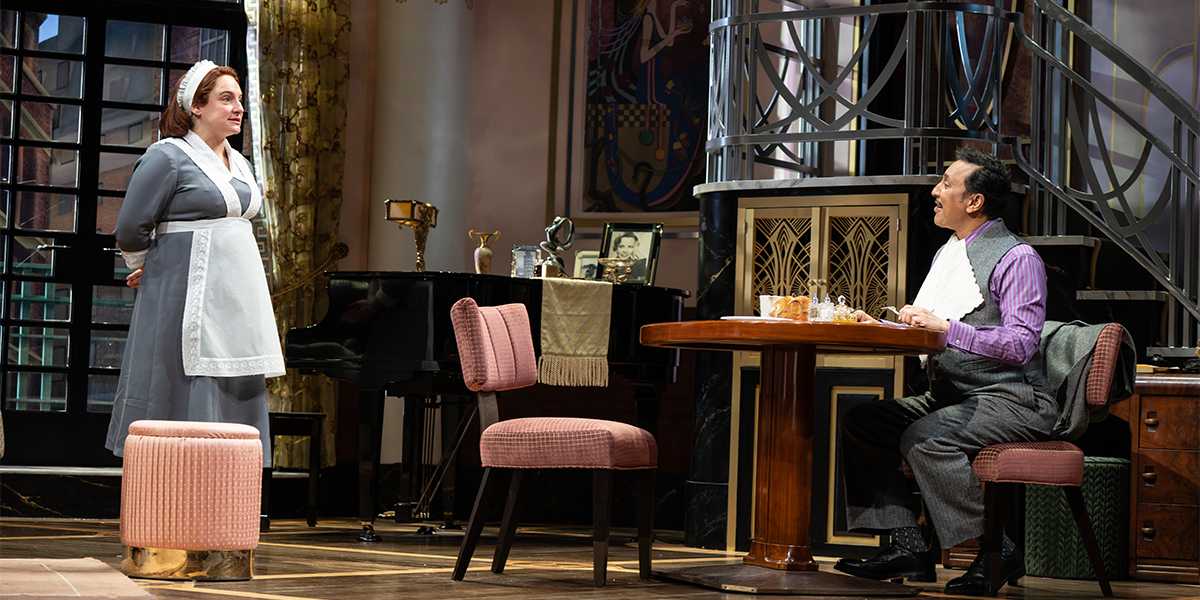
The most useful AI work on Fallen Angels did not look like a robot making creative choices.
It looked like prep getting less fragile.
A theatre capture has too many moving pieces to run on vibes: multiple isolated cameras, switched reference feeds, embedded source timecode, large ProRes files, duplicate drives, Avid bins, group clips, proxy decisions, and the ever-present risk that one wrong project setting quietly poisons the rest of the edit.
The goal was not to automate taste. The goal was to make the setup verifiable enough that editorial judgment could happen on solid ground.
How the Tool Got Built
Nick introduced the idea to Codex as an editorial problem first, not a coding stunt.
The question was practical: could we use AI to help turn a live theatrical line cut into a verified, editable Avid setup without asking the AI to make creative choices? The first version of the idea was not “let the assistant edit the show.” It was closer to: help me inspect the media, prove the sync, rebuild the camera decisions, and keep the repetitive Avid prep from becoming a place where mistakes hide.
That mattered because Nick supplied the editorial rules the tool had to obey. The assistant could write scripts, run FFmpeg, inspect Avid state, and remember command sequences, but Nick kept defining what a valid result actually meant:
- source timecode matters more than file offset;
- PGM and CLEAN are references, not final picture sources;
- the rebuilt sequence needs to remain multicam-editable;
- PGM audio can stay continuous while picture comes from ISO cameras;
- every automated step needs a canary before it touches the full show.
The skill developed through that back-and-forth. Codex handled the mechanical memory: commands, IDs, logs, checks, and repeatable procedures. Nick kept steering the system back toward the editorial goal.
Start With Media Facts
The first rule was simple: do not trust filenames, camera notes, or Avid dropdown labels until the files themselves have been checked.
For this project, the useful baseline came from probing the media outside Avid:
- Apple ProRes
- 1920x1080
- progressive 59.94 fps
- 10-bit video
- two mono PCM audio streams at 24-bit / 48 kHz
- embedded source timecode
That mattered because a wrong Avid project format is easy to create and annoying to unwind. The working setup needed to stay 1080p/59.94, not drift into an interlaced or 29.97-style setup because a dialog default looked plausible.
The boring fact check saved real editorial time.
Build a Control Layer Before Driving the UI
Avid is not a normal web app. Some state is visible in bins. Some state is buried in project data. Some controls expose useful accessibility information. Some custom panels expose almost nothing.
The approach that worked was layered:
- Use Media Composer’s local gRPC API for exact state: project info, bins, windows, mob IDs, linked clips, commands.
- Use AppleScript/System Events for top-level menus when Avid exposes the menu item clearly.
- Use screenshots or direct UI interaction only for custom modal controls that the API cannot commit safely.
That became the core of the local Avid helper: a small bridge that let the assistant inspect Avid, select exact clips by mob ID, run commands, and only fall back to the live UI where Avid required it.
In practice, this meant the AI assistant was not guessing at screen coordinates as a first move. It was reading Avid state, acting on specific objects, and then verifying the result.
The Group Clips Fix
The grouping workflow exposed the real value of that layered approach.
At one point, the right rows appeared selected in the bin, but Clip > Group Clips... stayed disabled. The visible highlight was misleading. The bin rows looked selected, but the bin was not the active command target Avid expected.
What worked:
- activate the actual bin window through Avid’s API;
- reselect the intended mobs in that bin by ID;
- verify that
Group Clips...was enabled; - open the grouping command;
- choose
Source Timecodein the modal; - confirm the modal through the live UI;
- save the bin.
That is exactly the kind of task where AI assistance can be valuable: not by replacing the editor, but by remembering the brittle sequence and repeating it without skipping verification.
Keep the Angle Order Explicit
Multicam order is not a cosmetic detail. If the group order is wrong, every later shortcut, switch decision, and audit becomes harder to reason about.
The useful rule was to make the angle order explicit instead of inheriting whatever test group happened to exist:
camera 1, camera 2, camera 3, camera 4, camera 5, camera 6, CLEAN, PGMWhen all ten angles are present, the broader working order includes the full camera bank plus CLEAN and PGM. Either way, the point is the same: inspect the actual group/source-track order before authoring decisions against it.
The assistant can help enforce that kind of consistency because it does not get bored by repeated checks.
Make Bin Organization Repeatable
The same idea applies to bin organization.
An Avid project can become hard to trust when tests, failed builds, old groups, camera originals, reference feeds, and real editorial sequences all sit beside each other. For an AI assistant, messy bins are not just inconvenient. They make it easier to act on the wrong mob, open the wrong group, or treat a scratch sequence like a usable rebuild.
The useful pattern was a plain numbered structure:
00 Admin
01 Camera Originals
02 Linecut References
03 Groups
04 Rebuild Work
05 Sequences
90 Tests Scratch
99 Archive
That is the kind of work Codex or Claude can help with, and ideally any LLM assistant could handle once the Avid skill is published. The skill does not need the assistant to understand the play. It needs to define the boring rules clearly enough that the assistant can follow them:
- read the open project and bin list before moving anything;
- keep linked camera originals separate from line-cut references;
- keep real groups separate from diagnostic group-build attempts;
- keep programmatic rebuilds and canaries out of the final sequence bin;
- save all bins before and after reorganization;
- never empty Avid Trash or delete old bins unless the editor explicitly asks;
- verify the resulting bins by name, location, timestamp, and visible project state.
That is a good use of an AI skill because it turns local craft knowledge into a repeatable checklist. The assistant can clean up the working space, preserve the scratch history, and make the editorial path obvious without deciding what the edit should be.
Use FFmpeg for Sync and Scene Detection
FFmpeg became the neutral audit layer between the camera files and Avid.
That mattered because Avid is where the edit lives, but it should not be the only place we ask basic forensic questions. Before making timeline decisions, FFmpeg could inspect the source media, generate lightweight reference outputs, and produce repeatable data that was easy to compare.
The most useful passes were:
ffprobechecks for codec, frame rate, audio layout, and embedded timecode;- audio and timecode-based sync audits to catch offsets before grouping;
- scene-detection passes against the switched reference feed;
- stills, thumbnails, and short review clips for quick visual spot checks;
- JSON/CSV outputs that could be reviewed before anything touched an Avid timeline.
For the AI assistant, that was the right kind of work. It could run the same FFmpeg checks consistently, preserve the command output, compare the results, and flag the places that needed an editor’s eye.
Replace the Line Cut Before Editing
The live line cut is a valuable map. It is not automatically the material we want to edit from.
That distinction is important. A line cut is baked picture: one video stream where the live switcher has already chosen which camera is visible at every moment. It is useful for timing, structure, and reference, but it does not give the editor normal multicam freedom. If a reaction needs to breathe, an entrance needs a cleaner angle, or a switch landed a beat early, the line cut can show the problem but cannot provide the missing camera handles.
So the goal was to replace the line cut before creative editing starts.
The prep pipeline that worked used CLEAN or PGM as a reference, used FFmpeg scene detection to find hard switch points, then compared those segments against the isolated cameras at matching source timecode. That last phrase matters: same file offset is wrong when the camera banks and reference feeds start at different timecodes.
The better workflow was:
- Use CLEAN or PGM as the line-cut reference.
- Detect switch points with FFmpeg scene detection.
- Build record-side segments.
- Compare each segment against ISO cameras at matching source timecode.
- Emit a JSON/CSV decision list.
- Build an Avid multicam sequence whose picture segments point to the matching ISO cameras.
- Keep PGM audio continuous where useful, but do not leave PGM or CLEAN video in V1 unless a segment is explicitly flagged as a manual exception.
- Spot-check low-confidence choices before treating the rebuilt sequence as editorial starting material.
That gave us an auditable list of likely camera choices and a practical reason for doing the work: the editor starts with the timing of the live cut, but the picture is rebuilt from the actual cameras. From there, a creative edit can still switch angles, extend moments, clean up choices, and respond to performance.
The computer does not need to understand comic timing to be useful here. It needs to get the editor to a clean, editable multicam baseline without flattening the show into a reference feed.
Stop Retrying a Bad Transcode Path
Another useful lesson came from a failure.
Full-length internal DNx LB transcodes failed after briefly writing temporary MXF media. The logs pointed to an Avid encode/conversion failure, not a missing-click problem.
The important move was to stop treating that as a UI automation issue.
Once the failure pattern was clear, the better plan was:
- run small canary tests before full-show transcodes;
- try alternate settings only when there is a reason;
- consider external proxy generation plus relink if Avid’s internal path keeps failing;
- preserve source frame rate for editorial proxies unless there is a deliberate delivery-only conversion.
AI help is most useful here when it refuses to keep pressing the same button and starts preserving the evidence instead.
What Actually Worked
The working pattern was not “AI edits Avid.”
It was:
- external media verification before project setup;
- FFmpeg sync and scene-detection passes before timeline work;
- replacing baked line-cut video with ISO camera video before creative editing;
- source-timecode grouping rather than file-offset assumptions;
- repeatable bin organization that separates source, reference, groups, rebuilds, sequences, scratch, and archive;
- API-first Avid state reads;
- exact mob selection instead of visual row guessing;
- live UI only where Avid required a modal commitment;
- auditable decision lists before timeline changes;
- conservative stop rules when logs showed a bad path.
That is a good division of labor.
The assistant can keep track of state, commands, IDs, formats, and repeatable checks. The editor still decides what belongs in the cut.
For a multi-camera theatre capture, that distinction matters.